
Settings
Open Settings with Camera Graph › Settings… (⌘,). Clicking the frame rate or the resolution in the toolbar opens Settings at the Video page.
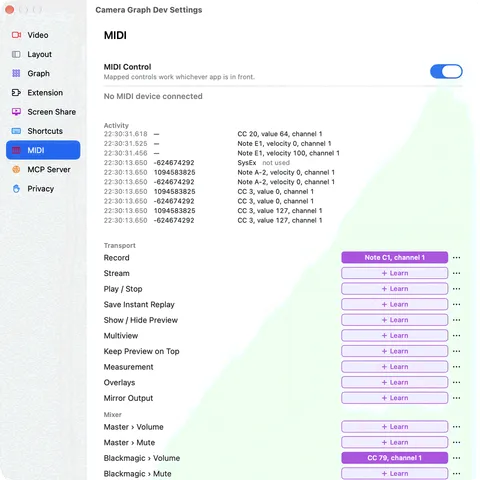
The Settings window has nine pages, listed in its sidebar: Video, Layout, Graph, Extension, Screen Share, Shortcuts, MIDI, MCP Server and Privacy. Each page scrolls, so you can make the window smaller.
Audio, recording and broadcast settings aren’t in the Settings window. They open from the toolbar, next to the buttons they belong to: see Toolbar settings.
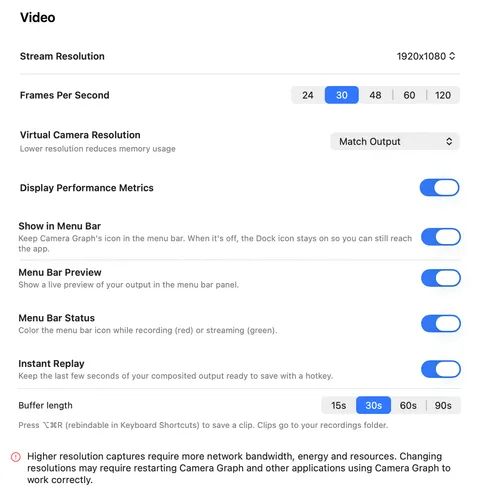
| Setting | What it does | Default |
|---|---|---|
| Stream Resolution | The size of your output: what the virtual camera, recordings and streams get. 3840x2160, 2560x1440, 1920x1080, 1080x1920, 1280x720, 720x1280, 854x480, or Custom Resolution. | 1920x1080 |
| Custom Resolution | With Custom Resolution chosen: type a width and height, 16 to 8192, and click Set. | |
| Frames Per Second | The output frame rate: 24, 30, 48, 60 or 120. Above 60, recordings are ProRes 422 only. | 30 |
| Virtual Camera Resolution | A smaller size for the virtual camera only, to save memory. See Virtual Camera. | Match Output |
| Display Performance Metrics | Shows frame rate, CPU and memory above the preview. | On |
| Show in Menu Bar | Keeps Camera Graph’s icon in the menu bar. When it’s off, the Dock icon stays on. | On |
| Menu Bar Preview | A live preview of your output in the menu bar panel. | On |
| Menu Bar Status | Colors the menu bar icon while recording (red) or streaming (green). | On |
| Instant Replay | Keeps the last few seconds of output ready to save. Not available when recording in ProRes. See Instant Replay. | Off |
| Buffer length | How much Instant Replay keeps: 15s, 30s, 60s or 90s. | 30s |
Stream Resolution and Frames Per Second can’t change while you’re streaming. Changing the resolution may need you to restart Camera Graph, and other apps using the virtual camera, before they pick it up.
Layout
Section titled “Layout”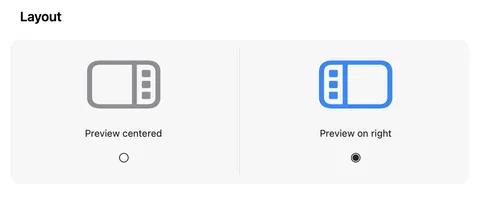
| Setting | What it does | Default |
|---|---|---|
| Preview on right | Sidebar, then inspector, then the preview on the right. | Selected |
| Preview centered | Sidebar, then the preview in the middle, then the inspector. |
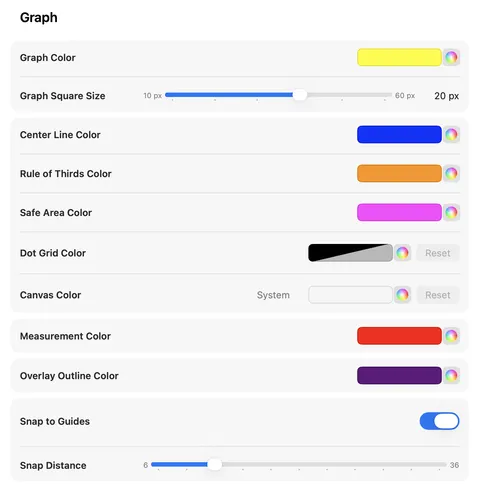
Colors and snapping for the editor. None of these change your output.
| Setting | What it does | Default |
|---|---|---|
| Graph Color | Color of the grid lines (View › Guides › Grid Lines). | |
| Graph Square Size | Size of the grid’s squares, in output pixels. The choices depend on your output size. | |
| Center Line Color | Color of the center lines guide. | |
| Rule of Thirds Color | Color of the rule of thirds guide. | |
| Safe Area Color | Color of the safe areas guide. | |
| Dot Grid Color | Color of the dots on the canvas around the frame. Reset restores the default. | |
| Canvas Color | Color of the canvas around the frame. System follows light and dark mode; Reset goes back to System. | System |
| Measurement Color | Color of the measurement lines. | |
| Overlay Outline Color | Color of the outlines around layers (View › Overlays). | |
| Snap to Guides | Layers snap to guides while you drag them. | On |
| Snap Distance | How close, 6 to 36 pixels, a layer has to come before it snaps. | 12 |
Extension
Section titled “Extension”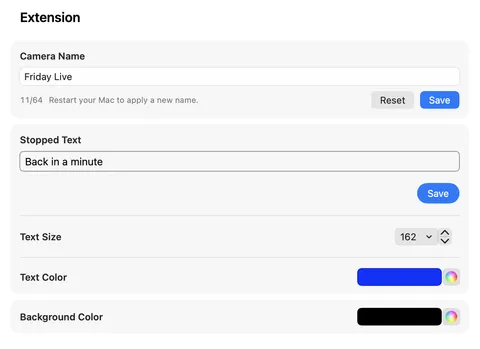
Settings for the virtual camera. See Virtual Camera.
| Setting | What it does | Default |
|---|---|---|
| Camera Name | The name other apps show for the camera, up to 64 characters. Save to keep it; restart your Mac to apply. Reset goes back to the default. | Camera Graph |
| Stopped Text | The text on the stopped screen. Click Save. | CameraGraph |
| Text Size | Size of the stopped-screen text, 10 to 200. | 72 |
| Text Color | Color of the stopped-screen text. | White |
| Background Color | Color behind the stopped-screen text. | Black |
Screen Share
Section titled “Screen Share”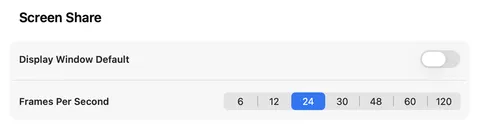
| Setting | What it does | Default |
|---|---|---|
| Display Window Default | When a Screen Share layer captures a whole display, each app has its own switch in the inspector. This sets the switch for apps Camera Graph hasn’t seen yet: on includes their windows, off leaves them out. | Off |
| Frames Per Second | How often screen shares capture: 6, 12, 24, 30, 48, 60 or 120. | 24 |
See Screen Share.
Shortcuts
Section titled “Shortcuts”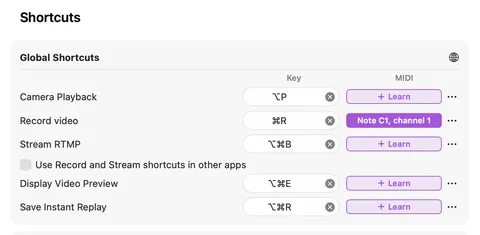
| Setting | What it does | Default |
|---|---|---|
| Camera Playback | Play or Stop, from any app. | ⌥P |
| Record video | Start or stop recording. | ⌘R |
| Stream RTMP | Start or stop streaming. | ⌥⌘B |
| Use Record and Stream shortcuts in other apps | Lets Record and Stream work while another app is in front. Needs a Record shortcut other than ⌘R. | Off |
| Display Video Preview | Show or hide the editor preview, from any app. | ⌥⌘E |
| Save Instant Replay | Save the Instant Replay buffer, from any app. | ⌥⌘R |
Each of these actions also has a MIDI column, where you can map a pad or key on a MIDI controller to it. See MIDI.
Below these, the page lists the app’s other shortcuts under Layers, Canvas and Edit Actions. They can’t be changed. For every menu command, see Keyboard Shortcuts.
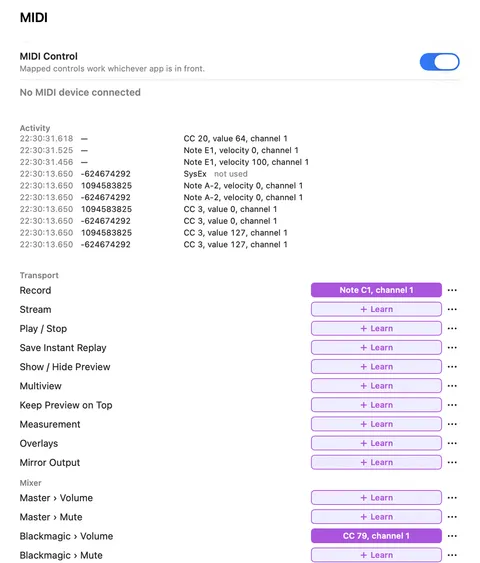
| Setting | What it does | Default |
|---|---|---|
| MIDI Control | The master switch for MIDI controllers. Mapped controls work whichever app is in front. | On |
| (each device) | A checkbox for each connected MIDI device. Off ignores that device. | On |
| Activity | The latest MIDI messages received, with the device, and why any were dropped. | |
| Mappings | Every mapping in this project, grouped as Transport, Mixer, Scenes, One-Shots, Layers and Effects. Click a mapping or Learn, then press or move a MIDI control. Each row’s ⋯ menu has Any Channel, Invert, Endless Knob and Clear MIDI Mapping. | |
| Add Mapping | Pick a control in this project to map. | |
| Clear All… | Removes every mapping on this Mac. | |
| Not in This Project | Mappings that belong to other projects, with Remove All. |
See MIDI.
MCP Server
Section titled “MCP Server”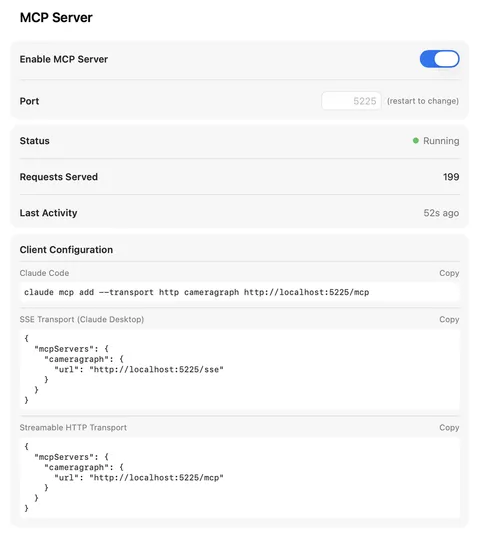
| Setting | What it does | Default |
|---|---|---|
| Enable MCP Server | Lets AI assistants on this Mac control Camera Graph. | Off |
| Port | The port the server listens on, 1025 to 65535. Turn the server off to change it. | 5225 |
| Status | Running or Stopped. While running: Requests Served, Last Activity, and SSE Clients when any are connected. | |
| Client Configuration | Ready-to-copy setup for Claude Code, SSE Transport (Claude Desktop) and Streamable HTTP Transport. Click Copy. |
See MCP Server.
Privacy
Section titled “Privacy”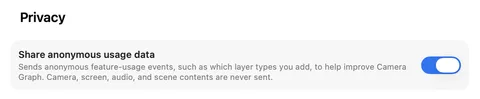
| Setting | What it does | Default |
|---|---|---|
| Share anonymous usage data | Sends anonymous feature-usage events, such as which layer types you add. Camera, screen, audio and scene contents are never sent. | On |
See the Privacy Policy.
Toolbar settings
Section titled “Toolbar settings”These open as popovers from the toolbar.
Click the microphone button in the toolbar. The Audio popover opens. See Mixer for how these settings work with the mixer.
| Setting | What it does | Default |
|---|---|---|
| Device | The sound for recordings and streams: No Audio, Camera Graph Audio Mixer (the Mixer), or a microphone or audio interface. | No Audio |
| Audio Channels | Mono or Stereo, for a single device. | Mono |
| Sample Rate | 44100 or 48000, for a single device. | 44100 |
| Stop Audio | Stops capturing from the device. Shown while it’s capturing. |
The mixer always records in stereo at 48 kHz. These settings can’t change while you’re streaming.
Record settings
Section titled “Record settings”Click the arrow next to the Record button. You can’t change these while recording.
| Setting | What it does | Default |
|---|---|---|
| File Type | mov or mp4. ProRes 422, and anything above 60 fps, is mov only. | mp4 |
| File Format | ProRes 422, HEVC (H.265) or H.264. Above 60 fps, ProRes 422 only. Choosing ProRes 422 sets File Type to mov. | H.264 |
| Save Directory | Where recordings and instant replays are saved. Click to choose a folder. | Asked for at your first recording |
See Recording.
Broadcast
Section titled “Broadcast”Click the arrow next to the Stream button, or choose Broadcast › Broadcast Settings….
| Setting | What it does | Default |
|---|---|---|
| Destinations | Up to five places to stream to, each with Name, Service, Server, Key and Include in Go Live. | None |
| Add Destination… | Adds Twitch, YouTube, Kick, Restream or a Custom server. | |
| Bitrate | The video bitrate every destination gets, in kbps, 1 to 100000. Can change while live. | 6000 |
See Streaming.
Not in Settings
Section titled “Not in Settings”- Presenting Mode is the pin button in the toolbar, or View › Keep Preview on Top. See Presenting Mode.
- Dock Icon is in the menu bar panel.
- The View menu holds the editor’s display toggles: Overlays, Measurement, Mirror Output and Guides.