
Menu Bar
Camera Graph puts an icon in the menu bar. Click it for a small panel that runs your show without bringing the main window forward: switch the live scene, see a live preview, check the audio level, and stop a recording or a broadcast.
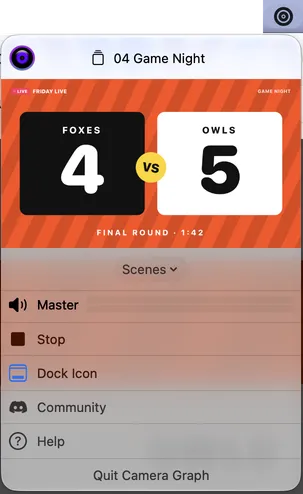
The panel
Section titled “The panel”From top to bottom:
| Item | What it does |
|---|---|
| Live scene | The name of the scene that’s on air. |
| Record button | Shown only while recording. Click it to stop the recording. |
| Live · 2 of 3 | Shown only while streaming: how many destinations are sending. Stop Broadcast ends the stream. |
| Preview | A live view of your output. Until your output has drawn a frame it says “Press Play to preview”. Turn it off with Menu Bar Preview in Settings › Video. |
| Scenes | A menu of your scenes. Choose one to put it live. The live scene has a checkmark. |
| Master | The level meter for the Mixer’s master output. |
| Camera Playback / Stop | Starts or stops sending your output to the virtual camera. Stop also ends a recording or a stream that is running. |
| Dock Icon | Shows or hides Camera Graph’s icon in the Dock. |
| Community | Opens the Camera Graph Discord. |
| Help | Opens the Install and Permissions page of these docs. |
| Quit Camera Graph | Quits the app. If you’re recording or streaming, Camera Graph asks first. |
Recording and streaming colors
Section titled “Recording and streaming colors”The menu bar icon changes while you’re on air:
- The middle ring turns red while recording.
- The outer ring turns green while streaming.
Both can show at once. To keep the icon plain, turn off Menu Bar Status in Settings › Video.
Run Camera Graph from the menu bar only
Section titled “Run Camera Graph from the menu bar only”To keep Camera Graph out of the Dock, click Dock Icon in the panel. The app keeps running, and the panel is how you get back to it. Click Dock Icon again to bring the Dock icon back.
If you closed the editor window, choose Window › Camera Graph to open it again.
Hide the menu bar icon
Section titled “Hide the menu bar icon”Turn off Show in Menu Bar in Settings › Video, or hold ⌘ and drag the icon out of the menu bar.
Hiding the icon turns the Dock icon back on, so you can always reach Camera Graph. To bring the icon back, turn Show in Menu Bar on again.
Settings
Section titled “Settings”All three are in Settings › Video and are on by default.
| Setting | What it does |
|---|---|
| Show in Menu Bar | Keeps Camera Graph’s icon in the menu bar. When it’s off, the Dock icon stays on. |
| Menu Bar Preview | Shows a live preview of your output in the panel. Needs Show in Menu Bar. |
| Menu Bar Status | Colors the icon while recording (red) or streaming (green). |