
MIDI
Camera Graph can be played from a MIDI controller: a pad grid, a keyboard, a fader box or a DJ controller. Pads switch scenes, fire one shots, and start or stop recording and streaming. Faders and knobs ride the mixer, a layer’s opacity or scale, and any effect’s sliders.
Mapping works like Ableton Live. Turn on MIDI map mode, click a control on screen, then press or move a control on your MIDI device.
Connect a controller
Section titled “Connect a controller”- Connect your controller to your Mac.
- Choose Camera Graph › Settings… (⌘,) and select MIDI. Your device is listed under MIDI Control.
MIDI Control is the master switch, and it’s on by default. Each device has its own checkbox, so you can keep a controller connected without Camera Graph responding to it.
Press a pad or move a fader. The Activity list in Settings › MIDI shows the message, so you know Camera Graph hears the device.
Map a control
Section titled “Map a control”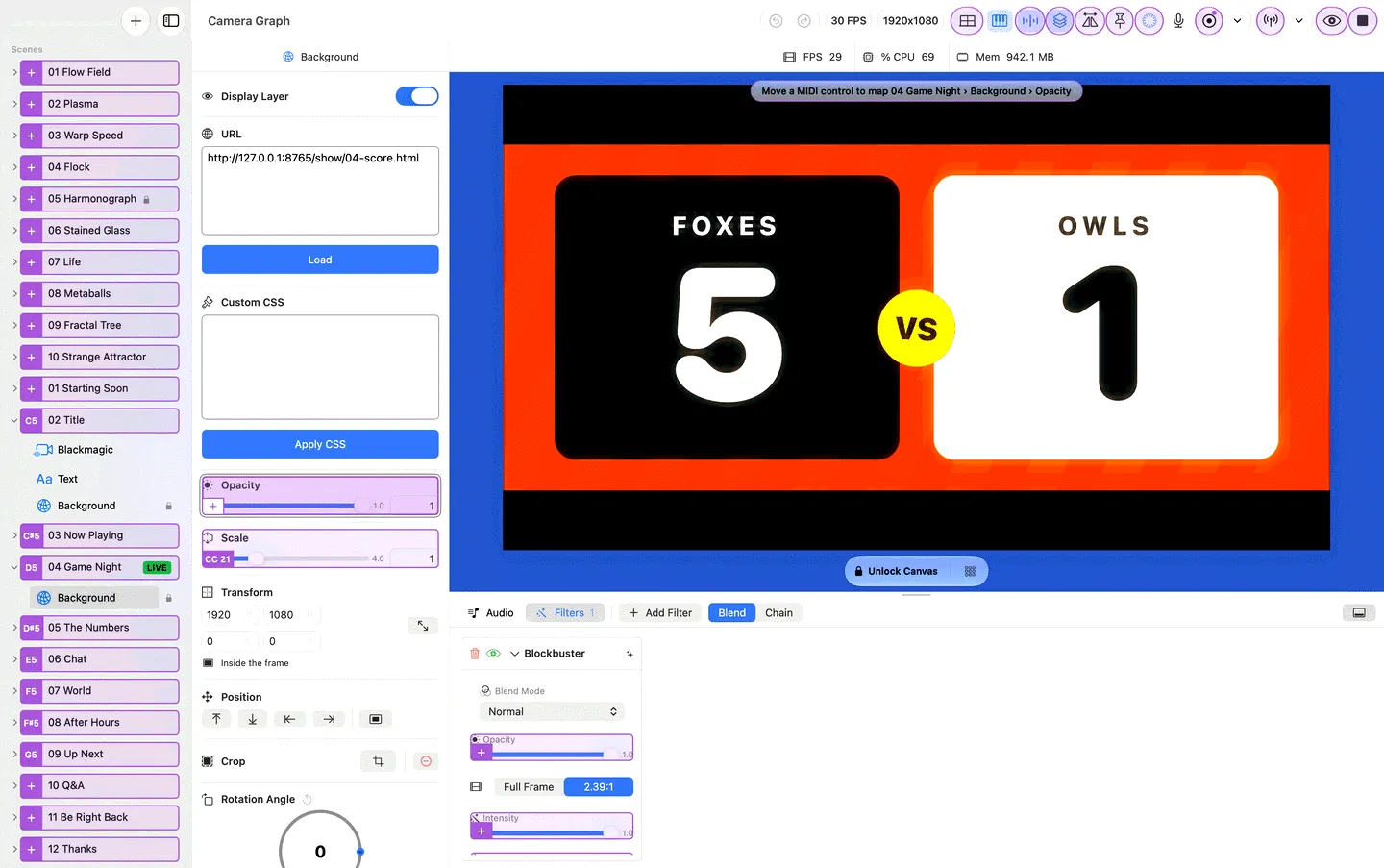
- Turn on MIDI map mode: click the piano-keys button in the toolbar, choose View › MIDI Map Mode, or press ⌃⌘M.
- Every control you can map gets a purple mark:
- Scene rows in the sidebar get a tile over their icon.
- Sliders get a corner segment.
- Toolbar buttons and small buttons, such as mute and solo, get an outline.
- Click a marked control. It gets a second ring to show it’s selected.
- Press a pad or key, or move a fader or knob, on your controller. The mark now shows the mapping, such as “C1” or “CC 7”. Small marks, on toolbar buttons and the mixer’s buttons, show a dot instead, and the status pill names the mapping.
- Click another control and repeat, or press Esc to deselect. Press Esc again, or ⌃⌘M, to leave map mode.
While map mode is on, your mappings don’t run anything: clicking a control selects it instead of using it, and MIDI messages map instead of firing. On a scene row only the purple tile selects, so clicking the rest of the row still switches scenes.
To change a mapping, select the control and press a different pad. To remove one, select the control and press Delete.
Marks show the mapping when there is one, and a plus when there isn’t. The difference is in the shape, not just the color.
The status pill
Section titled “The status pill”
While map mode is on, a pill over the preview says what to do next and what the last press did:
| The pill says | Meaning |
|---|---|
| Click a control to map it | Map mode is on and nothing is selected. |
| Move a MIDI control to map … | A control is selected and waiting. |
| … mapped to Note C1, channel 1 | The press was mapped. |
| … mapped; moved from … | That pad was mapped to another control, and moved here. |
| … needs a knob or fader | You pressed a pad for a slider. Sliders take knobs and faders only. |
| No MIDI device connected | Camera Graph doesn’t see a controller. |
| MIDI control is off in Settings | Turn on MIDI Control in Settings › MIDI. |
What you can map
Section titled “What you can map”Pads, keys and buttons trigger things. Faders and knobs set values.
| Group | Pads and keys | Faders and knobs |
|---|---|---|
| Transport | Record, Stream, Play / Stop, Save Instant Replay, Show / Hide Preview | |
| Toolbar toggles | Multiview, Keep Preview on Top, Measurement, Overlays, Mirror Output | |
| Scenes | Put a scene live | |
| One shots | Fire a one shot | Its duration and opacity |
| Mixer | Mute, solo and monitor for each track; mute the master | Each track’s volume, and the master volume |
| Layers | Opacity, and scale from 0.1× to 4× | |
| Effects | Opacity, a transition’s duration, and every slider an effect has |
A trigger fires on a note-on, a program change, or a controller that rises past the middle of its range (64), so a sustain pedal or a button that sends CC works too. Releasing a pad does nothing.
One shots and velocity
Section titled “One shots and velocity”A one shot fires at full strength from MIDI, like its play button. To have a softer hit play it more faintly, turn on Velocity Sensitive in the one shot’s card. See One Shots.
Pressing twice
Section titled “Pressing twice”Camera Graph ignores a repeat that comes too quickly, so a bouncy pad doesn’t undo itself: about half a second for transport and toggles, a short moment between scene switches, and almost nothing for one shots, where fast repeats are the point.
Faders pick up
Section titled “Faders pick up”A fader doesn’t jump the control it’s mapped to. When the on-screen value and the fader’s position differ, for example after a scene switch or after you dragged the slider with the mouse, Camera Graph waits until the fader reaches the current value, then follows it. A small arrow on the slider shows which way to move the fader to pick it up.
Endless knobs (encoders) move the control from wherever it is, so they never need picking up. Camera Graph spots a knob that sends single steps and treats it as endless. If yours isn’t detected, choose Endless Knob from the mapping’s ⋯ menu in Settings › MIDI.
Changes you make with a fader can’t be undone with ⌘Z, like moving a hardware fader. They’re saved with the project.
One message, one control
Section titled “One message, one control”In the open project, each MIDI message runs one thing. Mapping a pad that’s already in use moves it to the new control, and the status pill says where it came from.
Mappings are saved on your Mac, not in the project file. Mappings for scenes, layers and effects belong to the project they were made in. When you open another project they stay dormant, so two shows can each use the same pad for their own scenes. Transport, toolbar and mixer mappings work in every project.
The mixer follows the live scene
Section titled “The mixer follows the live scene”Each scene has its own mixer. A mixer mapping controls the matching track in whichever scene is live. A microphone matches by device. A video, screen share or Blackmagic track matches by layer type and name, so name a layer the same in each scene to share one mapping. Switch scenes, and the same fader rides the same microphone in the new scene. If the live scene doesn’t have that source, the mapping does nothing until one that does goes live.
See Mixer.
Settings › MIDI
Section titled “Settings › MIDI”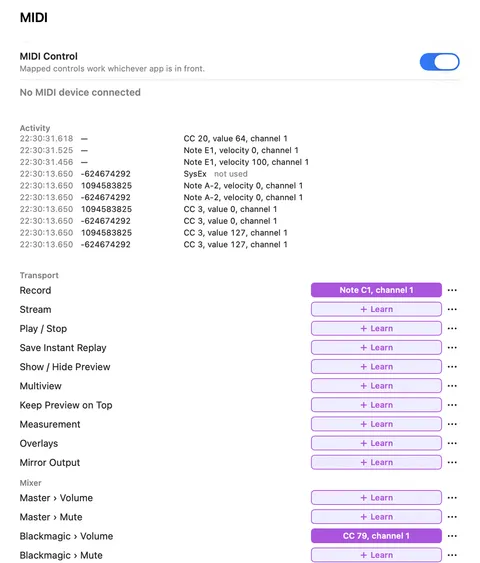
| Section | What it does |
|---|---|
| MIDI Control | The master switch, then a checkbox for each connected device. “Mapped controls work whichever app is in front.” |
| Activity | The latest messages, newest first: time, device and message. A message that was dropped says why: “MIDI Control off”, “device off”, or “not used” for a type of message Camera Graph doesn’t use. |
| Mappings | Every transport, toolbar and mixer target, plus this project’s mapped scenes, one shots, layers and effects, grouped as Transport, Mixer, Scenes, One-Shots, Layers and Effects. Each row has its mapping or Learn. |
| Add Mapping | A menu of this project’s controls that aren’t mapped yet. Choose one, then press or move a MIDI control. |
| Clear All… | Removes every mapping on this Mac, after asking. |
| Not in This Project | Mappings that belong to other projects. Remove one with its minus button, or click Remove All. Shown only when there are some. |
Click a row’s mapping, or Learn, and it says Listening…. Press or move a MIDI control to map it, or press Esc to cancel. Learning turns MIDI Control on if it was off.
Each mapping’s ⋯ menu has:
| Option | What it does |
|---|---|
| Any Channel | Respond to the message on any MIDI channel, not only the one it was learned on. |
| Invert | Faders and knobs: run the other way. |
| Endless Knob | Faders and knobs: treat the control as an endless encoder. |
| Clear MIDI Mapping | Remove the mapping. |
In Settings › Shortcuts
Section titled “In Settings › Shortcuts”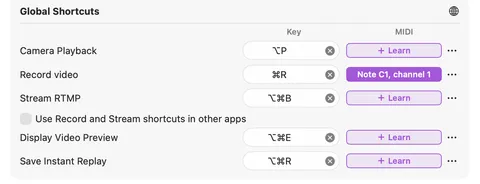
The global actions in Settings › Shortcuts (Camera Playback, Record video, Stream RTMP, Display Video Preview and Save Instant Replay) have a MIDI column next to their Key column. It works like the cells in Settings › MIDI, so you can give an action a key and a pad in one place. See Keyboard Shortcuts.
When Camera Graph is in the background
Section titled “When Camera Graph is in the background”Mappings work whichever app is in front, including Record and Stream. You can run the show from a controller while your slides or a call are in front.
Stream still checks first: if there’s no audio source, or no destination is ready, Camera Graph comes forward and opens the popover that needs attention instead of going live. See Streaming.
One shots you mapped before
Section titled “One shots you mapped before”If you set MIDI notes on one shots in an earlier version, Camera Graph imports them once, the first time you open the project, and they keep working.
Duplicating a one shot doesn’t copy its mapping. The copy starts unmapped, so it doesn’t fire with the original.
- My controller is connected but nothing happens.
Check Settings › MIDI: MIDI Control is on, your device’s checkbox is checked, and the Activity list shows your presses. If a press is listed with no reason but nothing happens, it isn’t mapped in this project: map it in map mode. “not used” means a type of message Camera Graph doesn’t respond to.
- A fader doesn’t move the slider.
It’s waiting to pick up. Move the fader the way the arrow on the slider points until it passes the current value.
- Can I map a pad to a slider?
No. Sliders need a knob or a fader. Pads, keys and buttons map to things that trigger.
- My mappings disappeared when I opened another project.
Scene, layer and effect mappings belong to the project they were made in. They come back when you open that project, and they’re listed under Not in This Project meanwhile.
- Can I use the same pad in two projects?
Yes. Each project’s mapping only runs while that project is open.
- Will my mappings come with me to another Mac?
No. Mappings are saved on each Mac, like keyboard shortcuts.
- Can an AI assistant set up mappings?
Yes. The MCP server can list, set and clear mappings, turn map mode on, and send a test message.
Shortcuts
Section titled “Shortcuts”| Action | Shortcut |
|---|---|
| MIDI Map Mode on or off | ⌃⌘M |
| Deselect the control, then leave map mode | Esc |
| Clear the selected control’s mapping | ⌫ |