
Streaming
Camera Graph streams its output over RTMP to up to five destinations at the same time: Twitch and YouTube together, for example, with no extra software. Each destination gets its own connection, health indicator and reconnect, so one service having trouble doesn’t stop the others.
Before you start
Section titled “Before you start”You need:
- A stream key from each service. Services show it in their dashboard, often under “Stream key” or “Encoder setup”. See Stream to YouTube for a worked example.
- An audio source. Choose one in the Audio popover, from the microphone button in the toolbar: a microphone, or Camera Graph Audio Mixer to stream the Mixer. Camera Graph won’t go live with No Audio selected.
Add a destination
Section titled “Add a destination”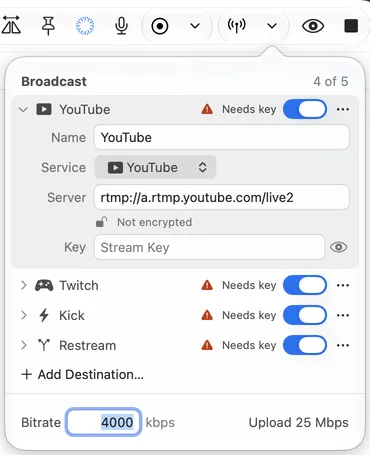
- Click the arrow next to the Stream button in the toolbar, or choose Broadcast › Broadcast Settings…. The Broadcast popover opens.
- Click Add Destination… and choose a service: Twitch, YouTube, Kick, Restream or Custom.
- The service’s server is filled in for you. Paste your stream key into Key and press Return.
- Optional: change the Name. Its first two letters label the destination’s chip in the status bar.
For Custom, type the server URL first. It must start with rtmp:// or rtmps:// and include the app path, such as rtmp://live.example.com/live. If you paste a URL with the stream key on the end, Camera Graph offers to Move the last part into the Key field.
The header shows how many destinations you have out of the five allowed, such as “4 of 5”.
Destination settings
Section titled “Destination settings”Click a destination to open it. Only one is open at a time.
| Setting | What it does |
|---|---|
| Name | The destination’s name in the popover. Its first two letters label its chip in the status bar. |
| Service | Twitch, YouTube, Kick, Restream or Custom. Changing it fills in that service’s server. |
| Server | The RTMP or RTMPS address. If a service’s row points at another service’s server, Camera Graph warns “Not a Twitch server” (or the service’s name), so a key isn’t sent somewhere else by mistake. |
| Key | Your stream key. Hidden as dots unless you click the eye. |
| Include in Go Live | Whether Go Live starts this destination. Turn it off to keep a destination without using it. |
| More (⋯) | Move Up, Move Down and Delete. |
Status words
Section titled “Status words”A closed destination shows a word only when something needs attention:
| Status | Meaning |
|---|---|
| Needs key | Paste the stream key. |
| Needs URL | Type a server address (Custom). |
| Key not saved | The key couldn’t be stored. Type it again. |
| Can’t read key | The Keychain didn’t return the key. Type it again. |
| Not encrypted | The server uses rtmp://, so the key is sent without encryption. Use rtmps:// if the service offers it. |
| Same server and key as … | Two destinations would send the same stream. Change or turn off one. |
Stream keys stay in the Keychain
Section titled “Stream keys stay in the Keychain”Stream keys are saved in your Mac’s Keychain, not with Camera Graph’s other settings, and are never shown to MCP clients.
To show a key, click the eye next to it. That’s unavailable while you’re streaming or recording, or while an app is using the virtual camera, because any of those could capture the screen and show the key.
If you change a destination’s server, its key is cleared and you enter it again. Deleting a destination deletes its key.
Go live
Section titled “Go live”- Click the Stream button in the toolbar, choose Control › Start Streaming, or press ⌥⌘B.
- The Stream button turns yellow while it connects, then green when you’re live.
Go Live starts every destination that has Include in Go Live on, a server and a key. If Camera Graph is stopped, Go Live also presses Play.
If nothing can go live, Camera Graph opens what’s missing: the Audio popover when there’s no audio source, or the Broadcast popover with the destination that needs setting up.
To stop, click the Stream button again, choose Control › Stop Streaming, or press ⌥⌘B. Broadcast › Stop Broadcast and the menu bar panel’s Stop Broadcast do the same.
While you’re live, the output size, frame rate, microphone, audio channels and sample rate are locked: services drop a stream whose format changes. The bitrate can still change.
Watch each destination
Section titled “Watch each destination”
While you’re live, the bar above the preview shows how long you’ve been live and a chip for each destination. Each chip has a symbol, a short label made from the first two letters of the destination’s name (“Yo” for YouTube; destinations whose names start the same get a letter and a number, such as “T1” and “T2”), and how much it’s sending. Click a chip to see the full name. An enabled destination that isn’t sending, for example one without a key, gets an Off chip with the reason. The symbols mean:
| Symbol | Meaning |
|---|---|
| Green check | Good |
| Orange triangle | Degraded: sending, but the connection is struggling |
| Red octagon | Failing or failed |
| Red circular arrow | Reconnecting |
| Circle with three dots | Connecting |
| Dashed circle | Off |
When the bar is narrow, chips drop the rate and then the label, and extra destinations collapse into “+2”. If some destinations are having trouble, the Stream button shows a small badge.
Click a chip for its details:
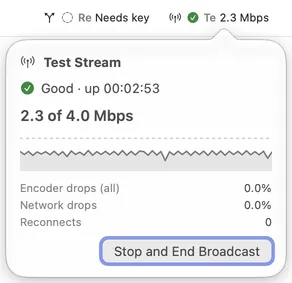
- The health line: how the destination is doing and for how long, or which reconnect attempt it’s on.
- What it’s sending against the target bitrate, and a graph of the last 60 seconds. Sending less than the target is normal for scenes that don’t move much.
- Encoder drops (all), Network drops and Reconnects.
- Buttons for what you can do now: Stop (or Stop and End Broadcast on the last one sending), Start, Retry or Edit Destination….
Stopping one destination leaves the others live. Stopping the last one ends the broadcast.
A destination you add, turn on or stop while you’re live has its own Start button next to its key in the Broadcast popover. Click it to bring that destination in without restarting the others.
Reconnecting
Section titled “Reconnecting”If a destination’s connection drops, Camera Graph reconnects it by itself, waiting a little longer between each try, up to 10 attempts. The other destinations keep streaming meanwhile. The chip says Retrying; its details show the attempt and when the next one starts.
If a destination gives up or the service rejects it, its chip turns red and the reason appears, such as “Check the stream key”, “The server rejected the stream key”, “The server refused the connection” or “Couldn’t reconnect”. Fix the key or server with Edit Destination…, then click Retry.
If every destination fails, the broadcast ends and Camera Graph says Broadcast ended, listing each destination’s reason. Click Go Live Again to try again, or Open Broadcast Settings when a key or server needs fixing. Above the preview, STREAM FAILED stays with the reason until you dismiss it.
Bitrate
Section titled “Bitrate”All destinations share one video bitrate, set in the Bitrate field at the bottom of the Broadcast popover, in kbps. The default is 6000 (6 Mbps). You can change it while live; the stream follows within a couple of seconds.
Next to it, Upload shows the upload speed you need for all your destinations together. Each destination sends its own copy, so three destinations need three times the upload.
Services publish a limit. If the bitrate is above the lowest limit of your destinations, the popover warns you:
| Service | Limit | Suggested |
|---|---|---|
| Twitch | 6000 kbps | 3000–6000 kbps |
| YouTube | 12000 kbps | 4500–12000 kbps |
| Kick | 8000 kbps | 1000–8000 kbps |
| Restream | 6000 kbps | 3000–6000 kbps |
| Custom | None |
If your connection can’t keep up, a warning appears in the status bar: “Your upload can’t keep up”. Click it to Stop One… destination or Lower Bitrate….
Stream size and recording at 4K
Section titled “Stream size and recording at 4K”The stream is sent at your output size up to 1920×1080, or 1080×1920 for a vertical output. A larger output, such as 4K, is scaled down for the stream. The services’ ingest limits are 1080p, so a larger stream wouldn’t be accepted anyway.
Your recording is separate: record at 4K while streaming and the file stays 4K while viewers get 1080p.
If your Mac’s video encoder can’t keep up, for example with a 4K 60 fps output while recording and running Instant Replay, a warning says how many frames the encoder is dropping. Try a 1920×1080 output, or turn off Instant Replay.
The stream is H.264 video with AAC audio at 128 kbps.
Quitting while live
Section titled “Quitting while live”If you quit while streaming, Camera Graph asks first, then ends the broadcast cleanly. Pressing Stop for the virtual camera (⌥P) also ends the broadcast.
- Can I stream to a service that isn’t in the list?
Yes. Choose Custom and paste the service’s RTMP or RTMPS server and stream key. Facebook, Instagram, LinkedIn and X can also be reached through Restream.
- Can each destination have its own bitrate or size?
No. Every destination gets the same stream. Set the bitrate for the most limited service, or send the others through Restream.
- Can I add a destination while I’m live?
Yes. Paste its key, then click Start next to the key. While you’re live you can’t delete destinations, and a destination that’s sending can’t be edited: stop it from its chip first.
- Do I need OBS?
No. You can still send Camera Graph to OBS through the virtual camera if you prefer OBS for streaming.
Shortcuts
Section titled “Shortcuts”| Action | Shortcut |
|---|---|
| Start or stop streaming | ⌥⌘B |
To change it, or to use it from other apps, see Keyboard Shortcuts.