
Overview
Camera Graph is a Mac app for building live video. You arrange cameras, screens, web pages, videos, images and text into scenes, add effects, and send the result to other apps as a camera, to a file, or to a live stream.
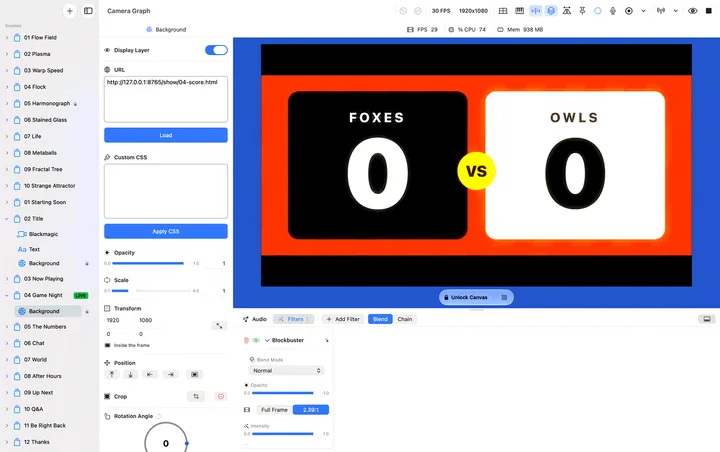
The main window
Section titled “The main window”| Area | What it holds |
|---|---|
| Sidebar | Your scenes, each with its list of layers. The Add button (+) above it adds scenes and layers. |
| Canvas | The preview of the scene you are editing. Drag, resize and crop layers here. |
| Inspector | The settings of whatever is selected in the sidebar or on the canvas. To give the preview more room, hide it with the inspector button next to the sidebar toggle, View › Hide Inspector, or ⌥⌘I. |
| Drawer | Under the canvas: Filters for the selected layer and Audio, the scene’s mixer. Show or hide it with ⇧⌘Y. |
| Toolbar | Play and Stop for the virtual camera, Record, Stream, Multiview and the canvas display toggles. |
If you close the main window, choose Window › Camera Graph to open it again.
How the pieces fit together
Section titled “How the pieces fit together”Scenes are layouts. Each scene has its own layers, its own transition and its own audio mix. One scene is live at a time: that is the picture other apps, recordings and streams receive. See Scenes.
Layers are the sources inside a scene. The first layer in the sidebar list is drawn in front. Camera Graph has these layer types:
| Layer | Shows |
|---|---|
| Camera | A webcam, an external camera, or an iPhone or iPad connected by USB. Can remove or blur your background. |
| Screen Share | A whole display or one app window. |
| Browser | A web page, with optional custom CSS. |
| Video | A video file, with play, loop and speed controls. |
| Image | A PNG, JPEG, HEIC or WebP image. |
| Text | Styled text, with an optional scrolling marquee. |
| Shape | A filled or outlined shape, with an optional gradient. |
| Blackmagic | The input of a Blackmagic DeckLink capture device. |
Effects change how layers and scenes look:
- Filters stay on until you remove them. Add them to a layer, or to a whole scene, from the Filters drawer.
- One Shots play once when you trigger them, from the drawer, a keyboard shortcut or a MIDI note.
- Transitions play when a scene goes live. Each scene has one.
- ML Models run a Core ML model on a layer.
The canvas shows one scene at a time, fitted to the output frame. Unlock it to zoom and pan, or turn on Multiview to see every scene side by side and edit one while another is live. See Canvas and Multiview.
Audio comes from microphones you add to a scene’s mixer, and from Video, Screen Share and Blackmagic layers, which add their own tracks. See Mixer.
Outputs take the live scene:
| Output | Where it goes |
|---|---|
| Virtual Camera | Any app that uses a camera: FaceTime, Zoom, Google Meet, Teams, Discord and others. Pick Camera Graph as the camera there. |
| Recording | A movie file with your scene’s audio mixed in. |
| Instant Replay | Saves the last few seconds as a clip when you press a shortcut. |
| Streaming | One or more RTMP destinations, such as YouTube and Twitch. |
| Presenting Mode | Keeps the Camera Graph window on top of other apps and out of your screen share. |
| Menu Bar | A menu bar panel to switch scenes and control the outputs while another app is in front. |
Camera Graph saves your scenes automatically and restores them the next time you open the app. Use File › Save Project (⌘S) to keep a copy as a file.