
ML Models
Camera Graph can run a Core ML model on any layer and draw what it finds over the picture: boxes around detected objects, a label naming what is in frame, or a tinted mask over a segmented area. Models run on your Mac. You can also run models over a video file and save the result with Render › ML Video Processing.
Add a model to a layer
Section titled “Add a model to a layer”- Select a layer or scene.
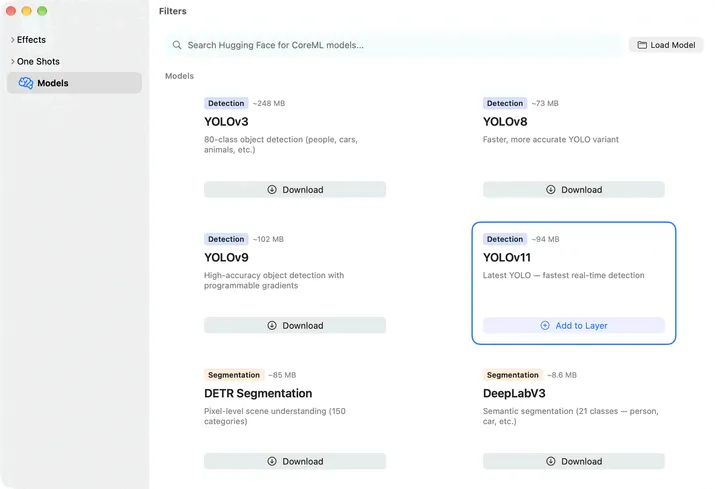
- Click Add Filter in the drawer, then choose Models in the Filters window sidebar.
- Click Download on a model. The card shows the download, then “Compiling model…”.
- When it is ready, click Add to Layer.
The model appears as a card in the drawer, named after the model, like any other effect. See Filters for the drawer and the card header.
Where models come from
Section titled “Where models come from”| Source | How |
|---|---|
| Built-in list | Curated detection, classification and segmentation models, with their download size. Models you have downloaded show an accent outline and Add to Layer. |
| Search | Type in Search Hugging Face for CoreML models… and press Return. Results are Core ML vision models on Hugging Face. |
| Load Model | Choose a .mlmodel, .mlmodelc or .mlpackage from your Mac. It is added to the selected layer straight away. |
Downloads and searches go to Hugging Face. Running a model does not.
The built-in list:
| Type | Models |
|---|---|
| Detection | YOLOv3, YOLOv8, YOLOv9, YOLOv11 |
| Segmentation | DETR Segmentation, DeepLabV3, SAM 2 Tiny, SAM 2 Large, SAM 2.1 Large, Depth Anything V2, Depth Anything V1 |
| Classification | MobileViT, FastViT-T8, ResNet-50, MobileCLIP |
Model card settings
Section titled “Model card settings”| Control | What it does |
|---|---|
| Confidence | Hides boxes and labels the model is less sure of than this, from 0 to 1. The default is 0.5. |
| Frame Delay | Runs the model every 1 to 10 frames. The default is 3. Higher values use less of your Mac. |
| Box Color | Detection models: the color of boxes and labels. |
| Show Labels | Detection models: names each box. |
| Show Confidence | Detection models: adds the model’s score to each label. |
The badge at the bottom of the card shows what Camera Graph detected the model to be: Detection, Classification or Segmentation. If a model can’t load, the card shows the error instead of these settings.
Process a video file
Section titled “Process a video file”Render › ML Video Processing… (⇧⌘R) runs models over a video file frame by frame and writes a new file. It doesn’t need to keep up in real time, so it can run heavier models or run them on every frame.
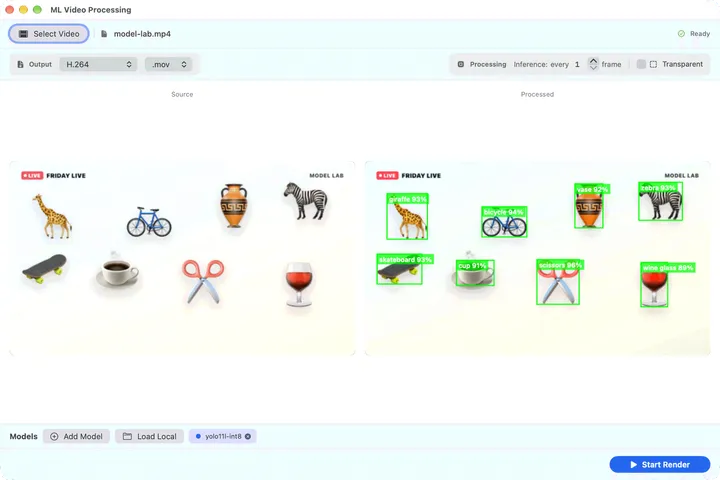
- Click Select Video and choose a movie file.
- Click Add Model to pick from the model list, or Load Local to choose a model file. Each model shows as a chip. Click a chip’s dot to turn it off, or its × to remove it.
- Set the output options below.
- Click Start Render (⌘Return) and choose where to save. The Source and Processed previews show the frame in progress.
While it renders you see the frame count, elapsed time and an estimate of the time left. Click Cancel to stop. When it finishes, click Show in Finder or Render Again.
| Setting | Options |
|---|---|
| Codec | H.264, HEVC (H.265) or ProRes 422. With Transparent on: ProRes 4444 or HEVC with Alpha. |
| Format | .mov or .mp4 for H.264 and HEVC. ProRes and HEVC with Alpha save as .mov only. |
| Inference | Run the models every 1 to 30 frames. The default is every frame. Higher is faster, lower is more accurate. |
| Transparent | Writes only the model’s overlay on a transparent background, without the source picture or its sound. |
The Codec menu lists only the codecs that fit the Transparent setting, and turning it on or off switches to one that does. The Format menu lists only the containers the codec can be saved in. If the file still can’t be written in the chosen format, the render stops with an error that names the codec and format, instead of writing a file with no video.
A transparent file can be laid over other footage in a video editor that reads alpha.
When Transparent is off, the source video’s sound is copied into the new file.