
Virtual Camera
Camera Graph adds a camera to your Mac. Any app that lets you pick a camera (Zoom, Google Meet, Microsoft Teams, FaceTime, Discord, OBS, a browser) can choose it and receive your live scene: every layer, filter and transition, exactly as the preview shows it.
The virtual camera is a macOS camera extension. It’s installed during onboarding. If you skipped that, see Install and Permissions.
Use it in another app
Section titled “Use it in another app”- In Camera Graph, press Play in the toolbar, or choose Control › Play (⌥P).
- In the other app, open its video or camera settings.
- Choose Camera Graph as the camera.
The other app now shows the live scene. Switch scenes in Camera Graph and the other app follows.
Play and Stop
Section titled “Play and Stop”Play sends the live scene to the virtual camera. Stop (the same button, Control › Stop or ⌥P) stops sending it, and the virtual camera shows the stopped screen instead.
Stop from the toolbar, the Control menu, the menu bar panel or ⌥P also ends a recording or a stream that is running.
⌥P works while another app is in front, so you can stop the camera mid-call without switching to Camera Graph. You can change it in Settings › Shortcuts (see Keyboard Shortcuts).
Rename the camera
Section titled “Rename the camera”Other apps list the camera as Camera Graph. To show a different name, such as your show’s name:
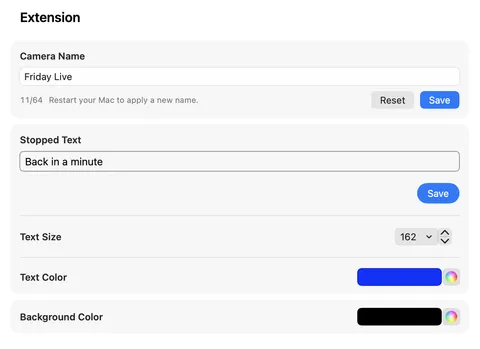
- Choose Camera Graph › Settings… (⌘,) and select Extension.
- Type a name in Camera Name. Names can be up to 64 characters.
- Click Save, or press Return.
- Restart your Mac.
The new name appears in other apps after the restart. Until then they keep showing the old one.
Reset puts the name back to “Camera Graph”. It also needs a restart.
Apps that remember which camera you picked keep that choice after a rename, because they identify the camera by a fixed ID, not by its name.
The stopped screen
Section titled “The stopped screen”When Camera Graph is stopped or not running, apps using the virtual camera show a plain card instead of a frozen frame. You set what it says in Settings › Extension:
| Setting | What it does | Default |
|---|---|---|
| Stopped Text | The words on the card. Type them, then click Save. | CameraGraph |
| Text Size | Size of the text, 10 to 200. | 72 |
| Text Color | Color of the text. | White |
| Background Color | Color behind the text. | Black |
Changes apply to the card straight away. They don’t need a restart. Renaming the camera doesn’t change the card’s text.
A short message such as “Back in a minute” or your show’s name works well, so people in the call know the camera is off on purpose.
Virtual camera resolution
Section titled “Virtual camera resolution”By default the virtual camera sends the same size as your output, set in Settings › Video › Stream Resolution. Many video-call apps only use 720p or 1080p, so a 4K output sends far more than they show.
To send a smaller picture to the virtual camera only, choose a size in Settings › Video › Virtual Camera Resolution. Recording and streaming keep the full output size.
| Option | Size |
|---|---|
| Match Output (default) | Same as Stream Resolution |
| 4K | 3840×2160 |
| 1440p | 2560×1440 |
| 1080p | 1920×1080 |
| 1080×1920 (Vertical) | 1080×1920 |
| 720p | 1280×720 |
| 720×1280 (Vertical) | 720×1280 |
| 480p | 854×480 |
Pick a size with the same shape as your output. A landscape size on a vertical output, or the other way round, stretches the picture.
Frame rate
Section titled “Frame rate”The virtual camera runs at the frame rate in Settings › Video › Frames Per Second.
- Camera Graph doesn’t appear in my other app’s camera list.
Check that the extension is installed and allowed: see Install and Permissions. Then quit and reopen the other app. Most apps only look for cameras when they start.
- The other app shows the stopped screen.
Press Play in Camera Graph, or press ⌥P.
- Camera Graph says “Restart your Mac to finish updating the Camera Graph camera.”
An update replaced the camera extension, and macOS finishes the swap only after a restart. Restart your Mac. Camera Graph only replaces the extension when an update changes it.
- Camera Graph shows “Quit and restart the App” over the preview.
macOS has the extension installed but hasn’t connected it to Camera Graph yet, which can happen after the extension is updated. Click Quit and restart the App. If that doesn’t help, click Update Extension, or choose Help › Update Extension, then restart your Mac.
- My picture is mirrored in the call.
Many call apps mirror your own preview but send the unmirrored picture to everyone else. Check with another person before changing anything. To flip the output itself, use View › Mirror Output.
- Can I use the virtual camera without a real camera?
Yes. The virtual camera sends whatever the live scene shows: screen shares, images, text, browser pages or video files.
Related
Section titled “Related”- Recording and Streaming send the same output to a file or a live service.
- Presenting Mode keeps the preview in view while you share your screen in a call.
- Uninstall removes the camera extension.